Digital Gujarat Scholarship Login 2026: Register, Sign In and Fix Errors
Quick answer: Open the Digital Gujarat citizen login page. Enter your registered email or mobile number and password. Confirm the OTP. Then go to Services, choose Scholarship Services and pick your scheme. New student? Register first with a mobile number, email, password and captcha.
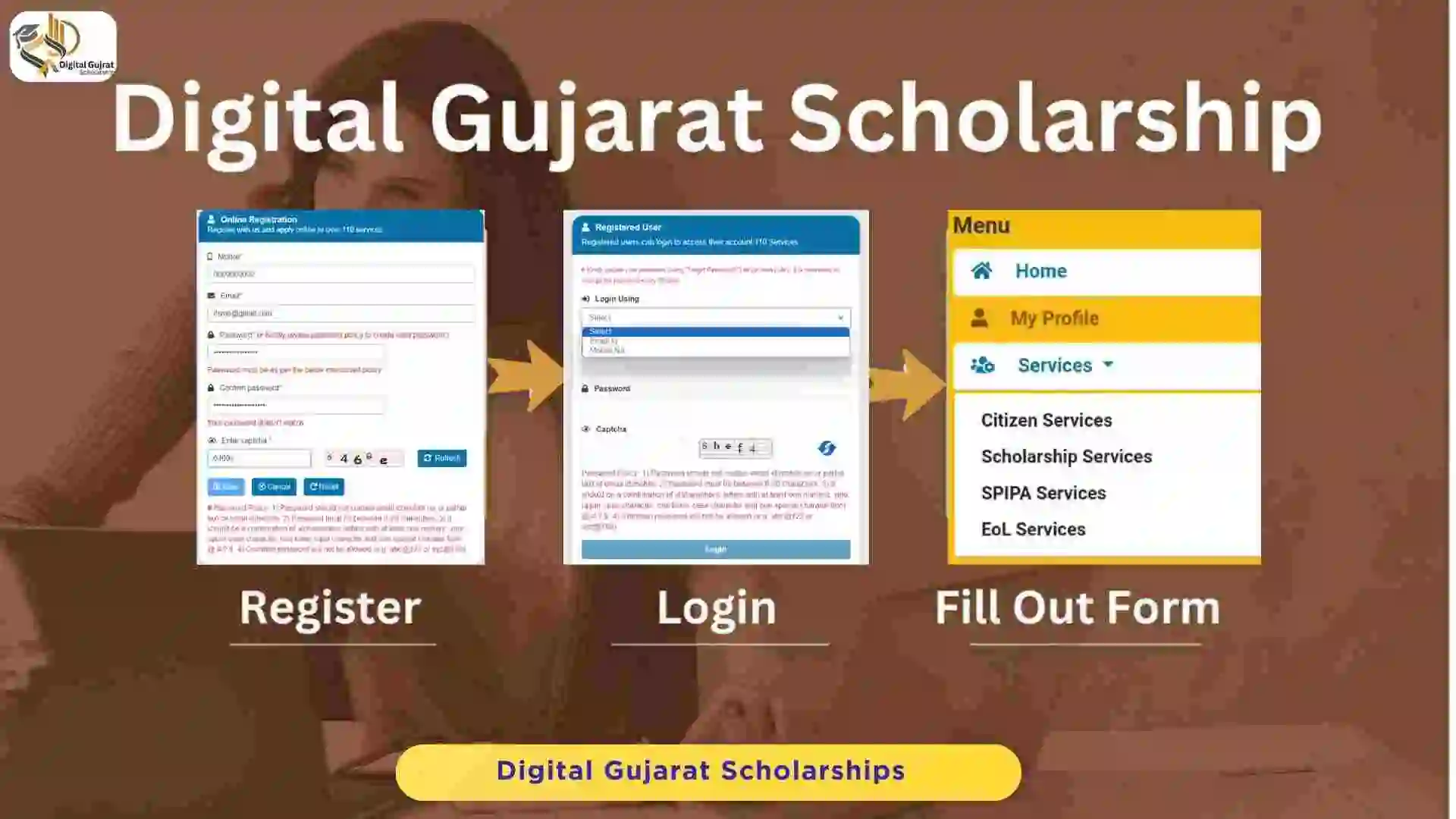
- Register
- Login and OTP
- Login problems
- Pick a scheme
- 5-step form
- Documents
- Submit and status
- Video
- FAQ
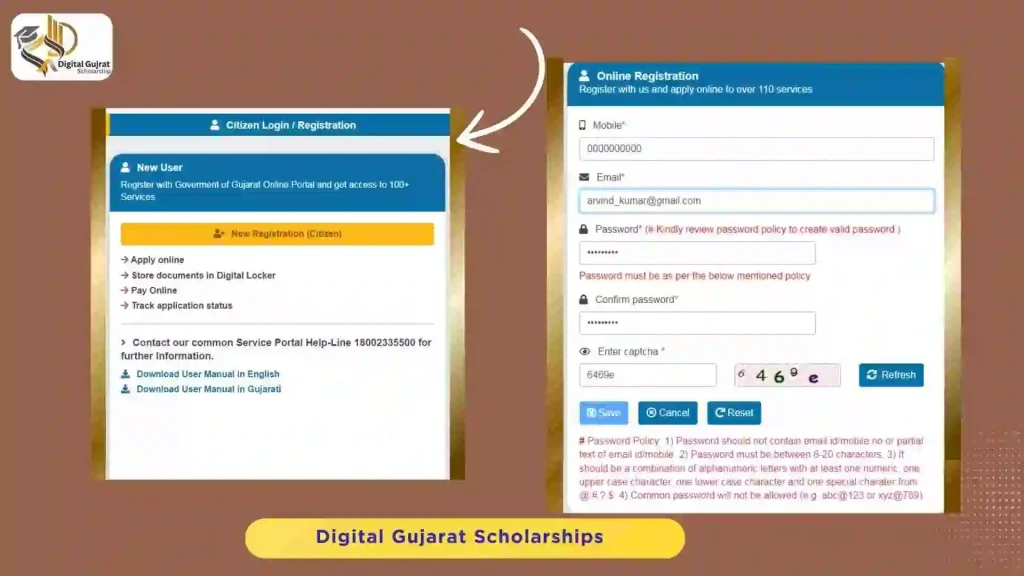
How do you register on the Digital Gujarat portal?
Registration takes a few minutes. Enter your mobile number, email address, a password and the captcha. An OTP goes to the mobile number for verification, so use a number you can answer.
No phone of your own? Use a parent, brother, sister or close relative’s number. Keep it active until your scholarship is paid. Already registered? Skip to login.
How do you log in with OTP?
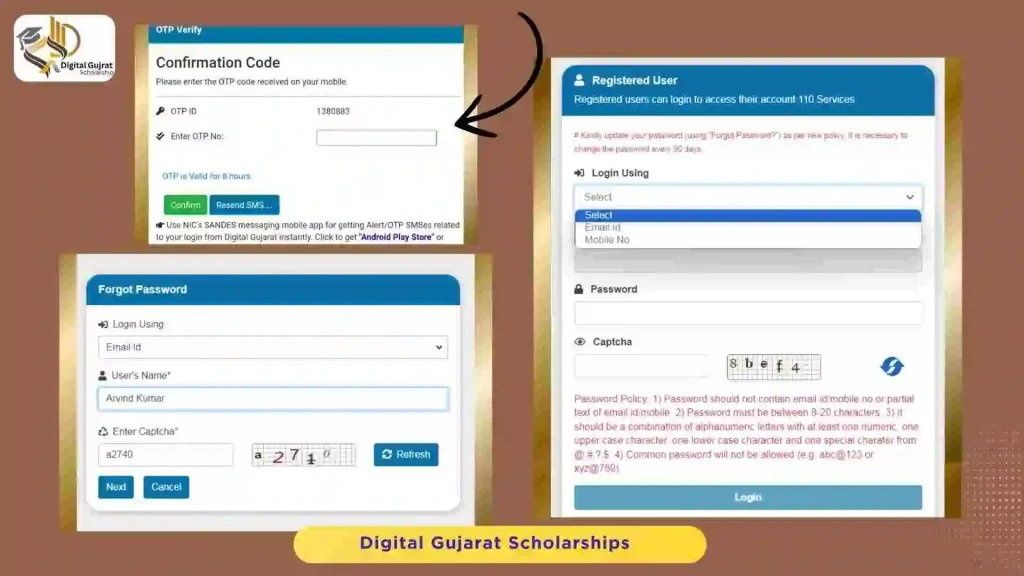
- Open the citizen login page.
- Type your registered email or mobile number.
- Enter your password and the captcha.
- Type the OTP sent to your phone or email.
Forgot your password? Tap Forgot Password and follow the prompts. The reset link or code goes to your registered contact.
Login not working? Common problems and fixes
Students on Reddit, Facebook and Instagram report the same few errors. Try these in order. Portal behavior can change, so treat the official site as final.
Invalid username or password
Use the exact email or mobile number from registration. Check caps lock and retype the captcha. Still failing? Use Forgot Password instead of guessing again.
OTP or SMS not received
Wait a few minutes before you request again. Check signal and storage on your phone. Make sure the number is the one you registered. Tap resend once, not many times.
“Object reference” error on the form
This message is common on busy days. Log out, clear your browser cache, then sign in with another browser. If it stays, try again early morning or late night.
Portal not working or server error
Traffic spikes near deadlines. Try off-peak hours, a different browser or the mobile app. Do not submit twice. One student can send only one application.
Status is blank after you applied
Confirm that you finished the last steps: print, college verification and mobile OTP submit. Then open Services and Scholarship Services to view your application again.
Consent or Aadhaar verification keeps failing
Allow the consent request when it appears. Check that your name matches your Aadhaar and that your mobile is linked. If it still fails, retry later or from another device.
How do you pick the right scholarship scheme?
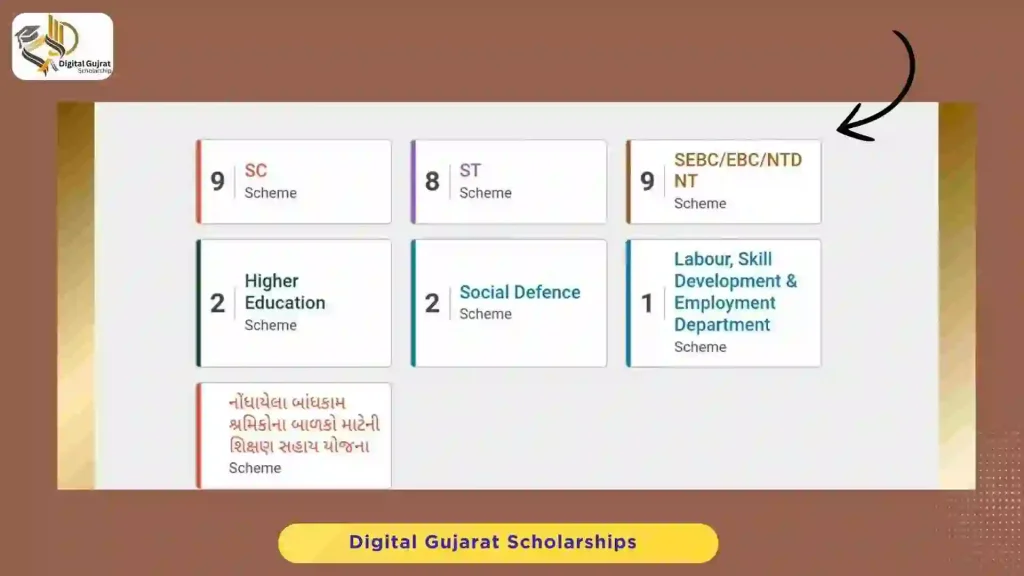
After login, open the Services tab. Choose Scholarship Services from the menu. You will see schemes by department, such as SC, ST, SEBC/EBC/NTDNT, Higher Education, Social Defence, Labour and Skill Development. Read the eligibility for each scheme before you continue.
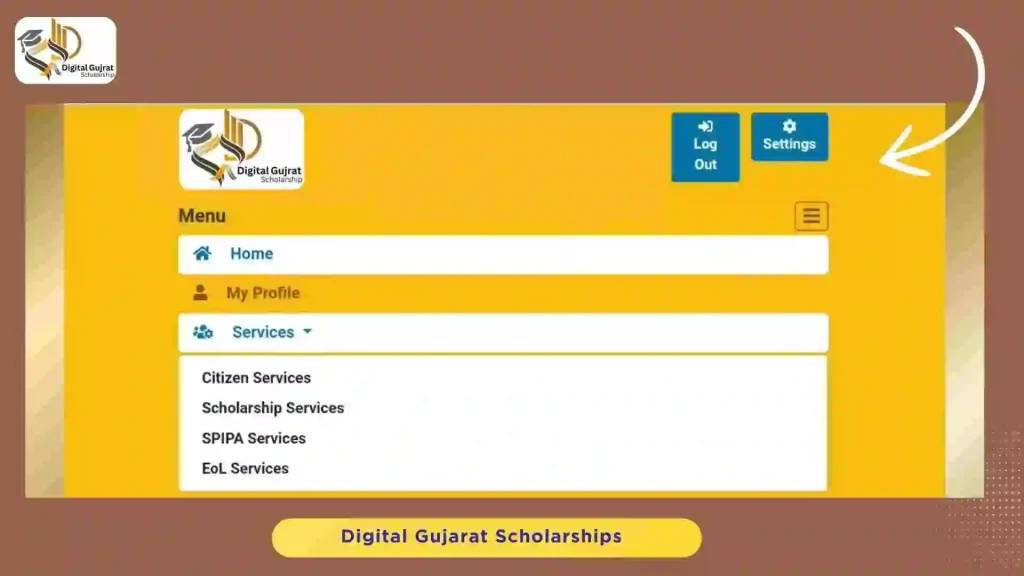
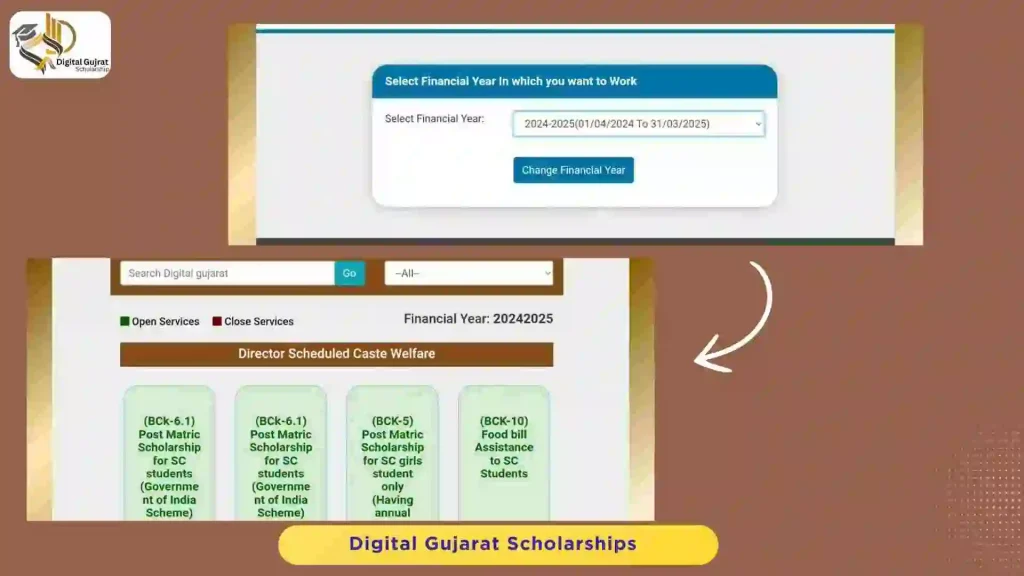
Next, pick the financial year and your scheme, then press Continue Service.
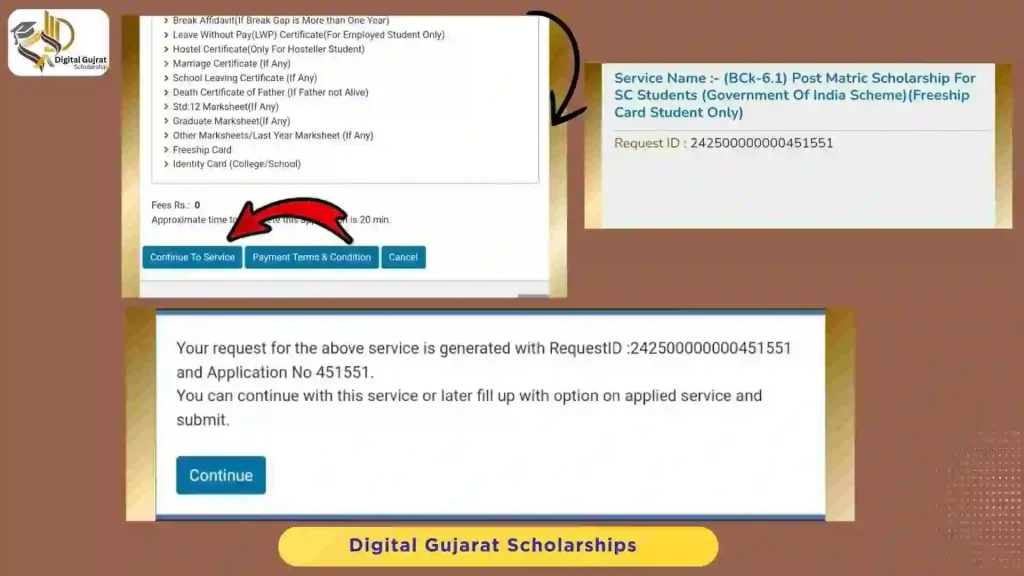
The 5 steps to fill the scholarship form
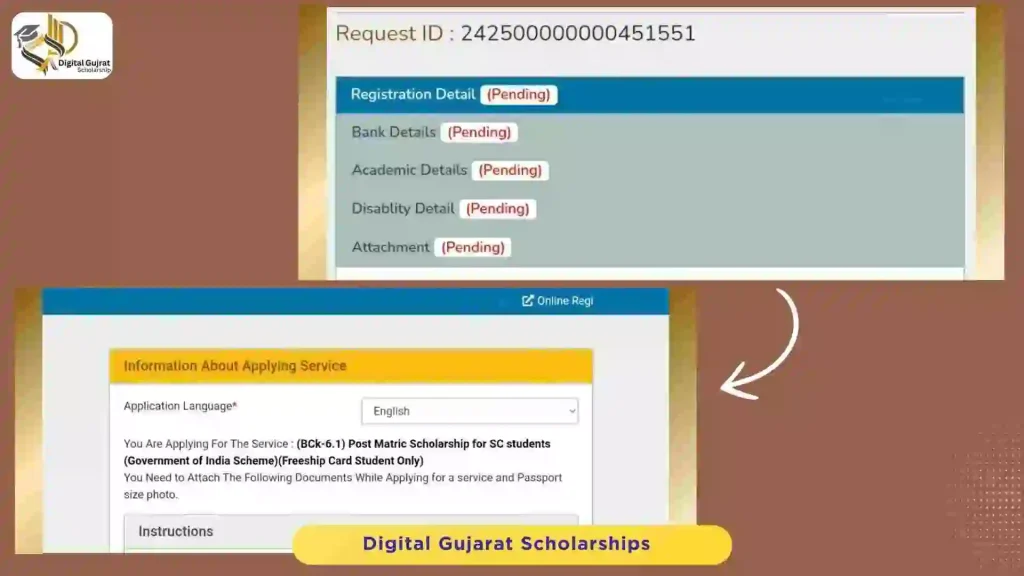
The steps are almost the same for every scheme. The example below is the SC post-matric scholarship with a Freeship Card. Tap a step to open it.
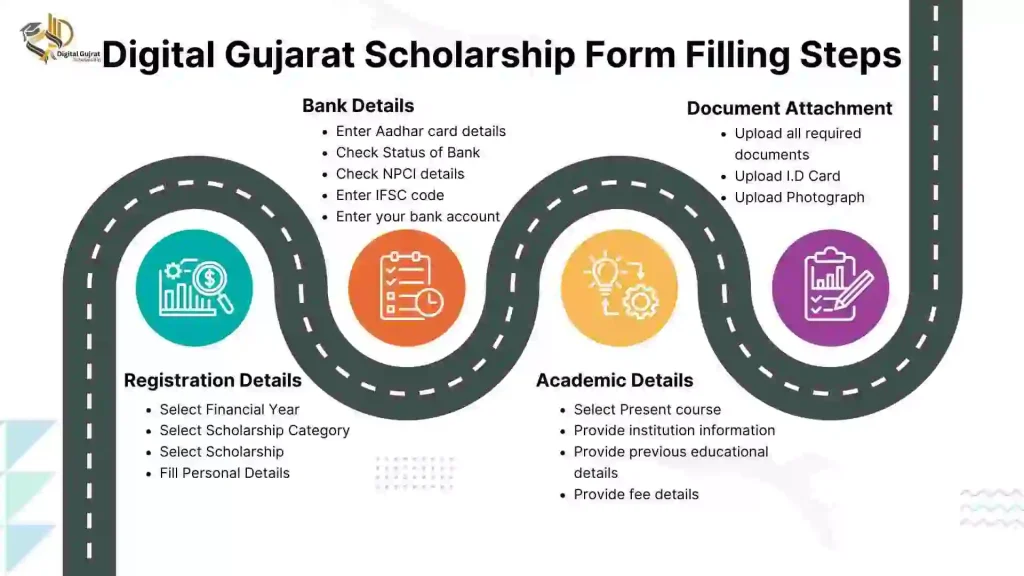
Registration details
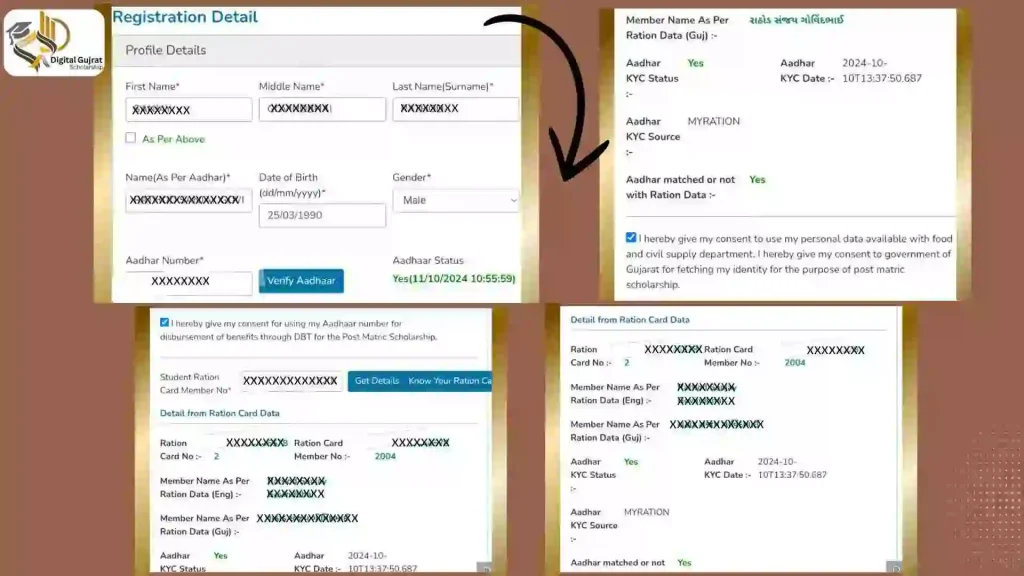
Enter your name as on your mark sheet and as on Aadhaar, date of birth, gender and Aadhaar number. Press Verify Aadhaar and give consent for direct bank transfer. Then add your ration card member number and press Get Details.
Ration card KYC: without it you cannot fill the form. Use the My Ration app. KYC takes about two days after you start.
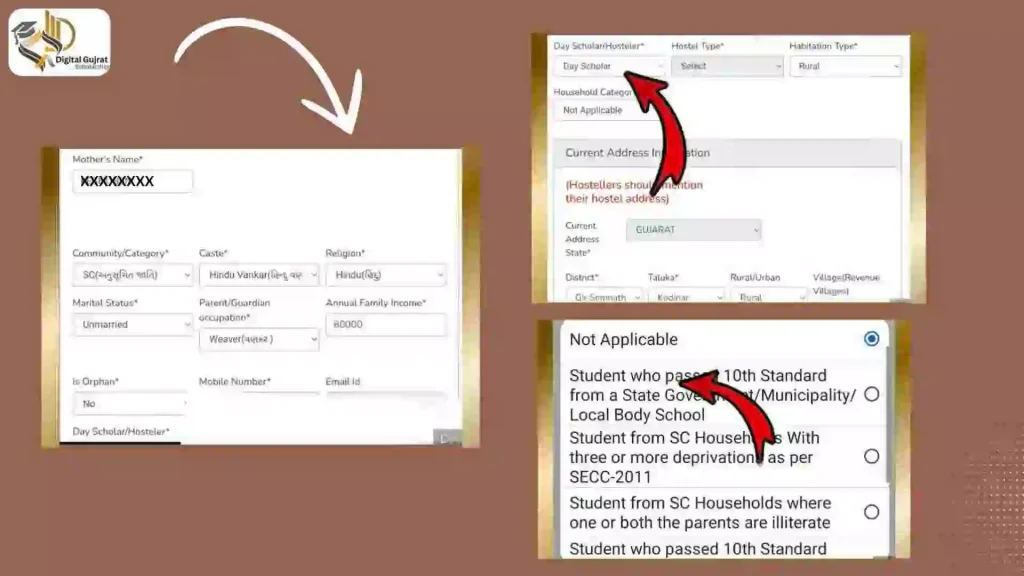
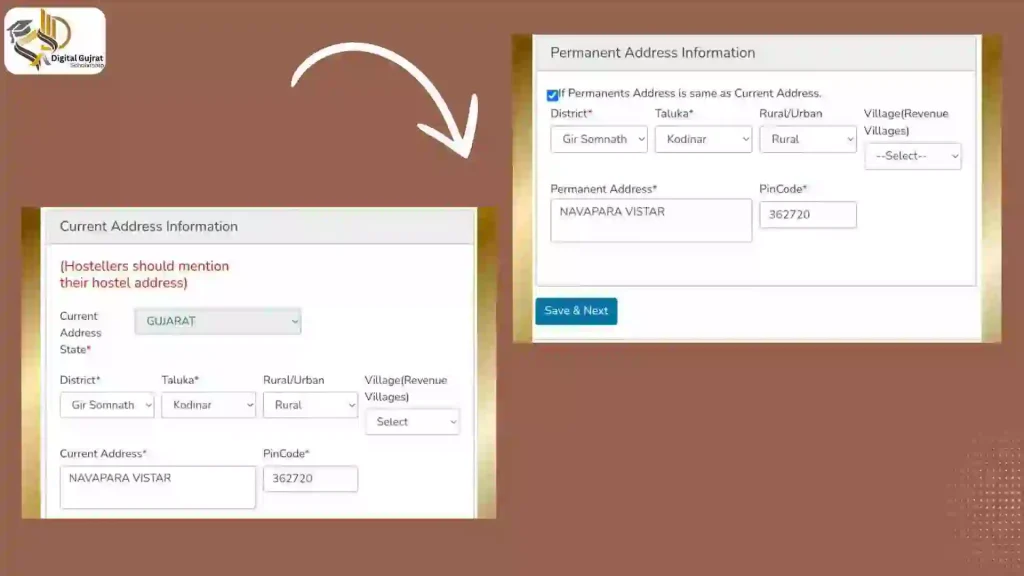
Also fill mother’s name, category, caste, religion, marital status, parent occupation, family income, orphan status, mobile, email, day scholar or hosteller, hostel type, habitation and household category. Then add current and permanent address. Hostellers should use the hostel address as current address.
Bank details
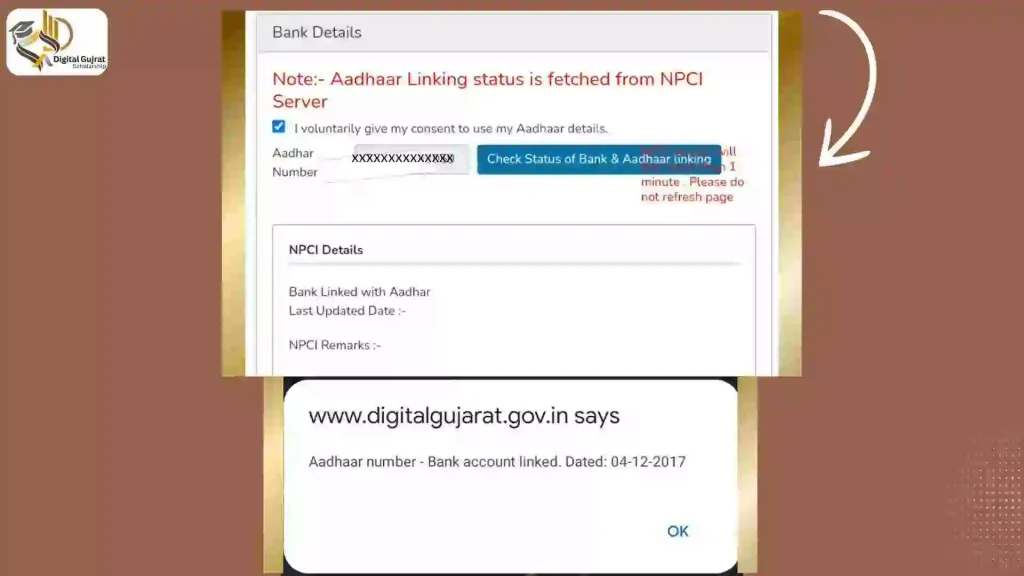
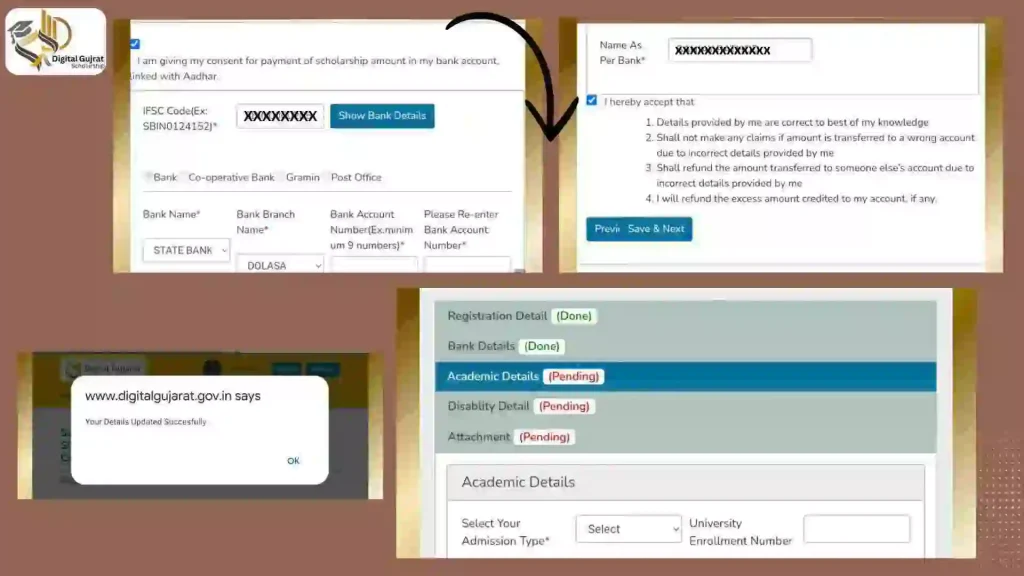
Link your bank account with Aadhaar so the money arrives by direct benefit transfer. Tick consent, enter Aadhaar and press the bank linking status button. The NPCI result shows your linked bank and date.
Enter the IFSC from your passbook and press Show Bank Details. Add your account number and your name as in the passbook. Press Save and Next.
Academic details
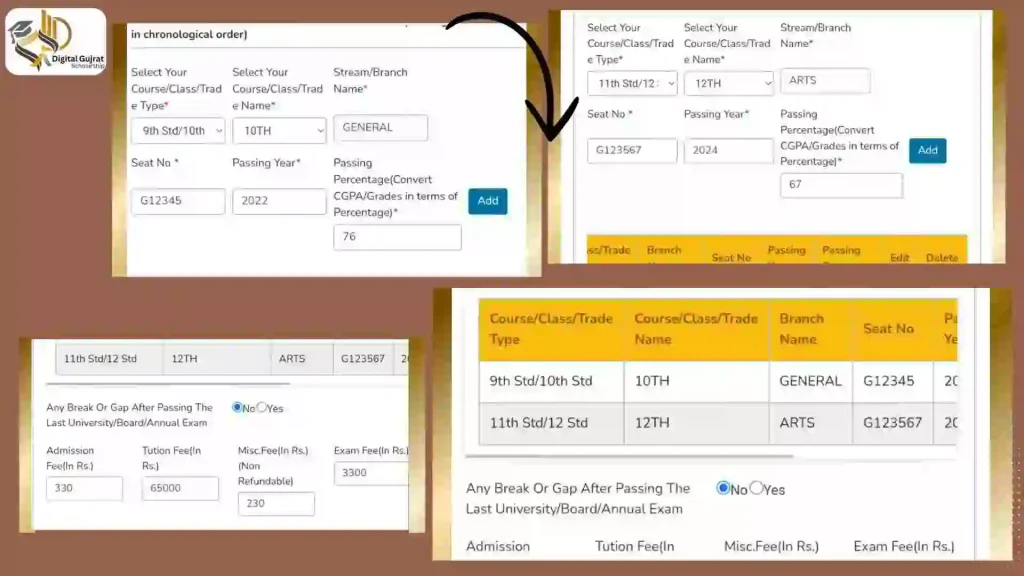
Choose your admission type, course type, course name, year, district, institute and branch. Add the course start date and likely end date. Not sure of the dates? Ask your college office.
Add previous education from 10th standard: course, stream, seat number, passing year and percentage. Convert CGPA to a percentage. Answer the question about any break or gap. SC and ST students also enter admission, tuition, misc and exam fees.
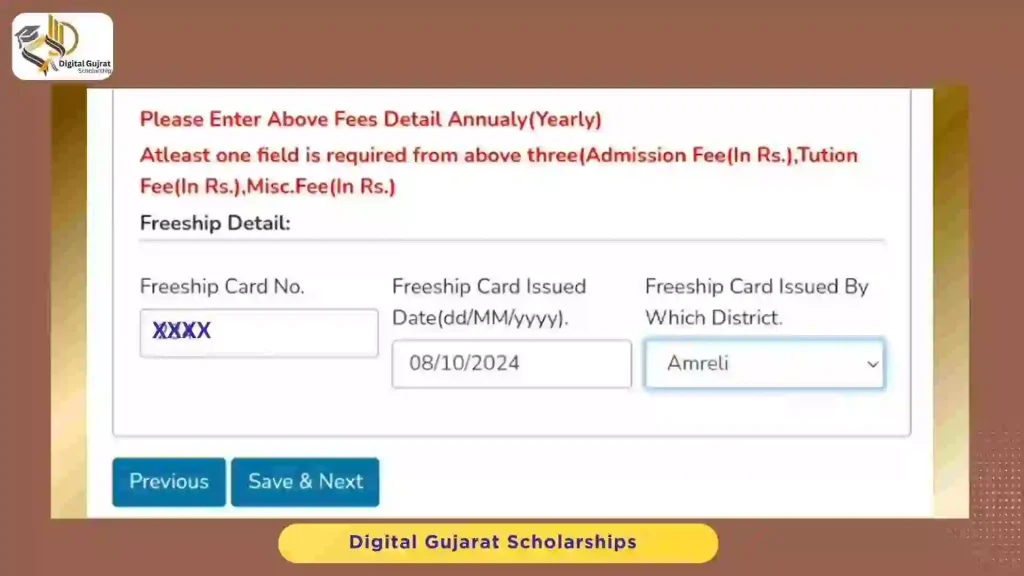
Freeship Card: if you took admission with one, enter the card number, issue date and issuing district. Other categories do not see this part.
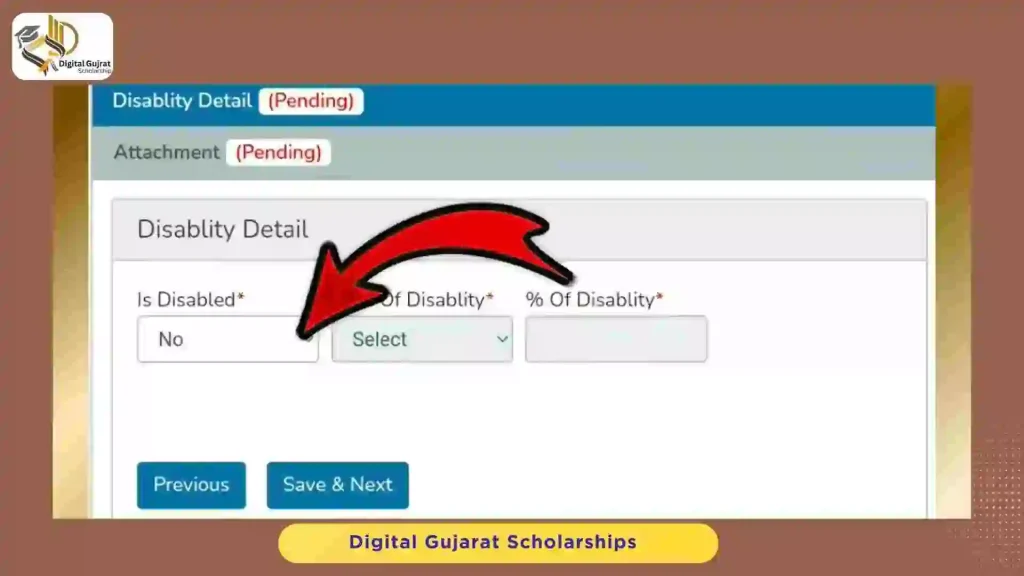
Disability details
Say yes or no to any disability. If yes, add the area and the percentage. Then press Save and Next.
Document attachments
Upload clear, readable files. Each file must be under 1 MB in jpeg, jpe, jpg or pdf. The photo can go up to 2 MB. Enter the matching number against each document, such as account, seat, certificate or receipt number. Press Browse, choose the file, then Upload.
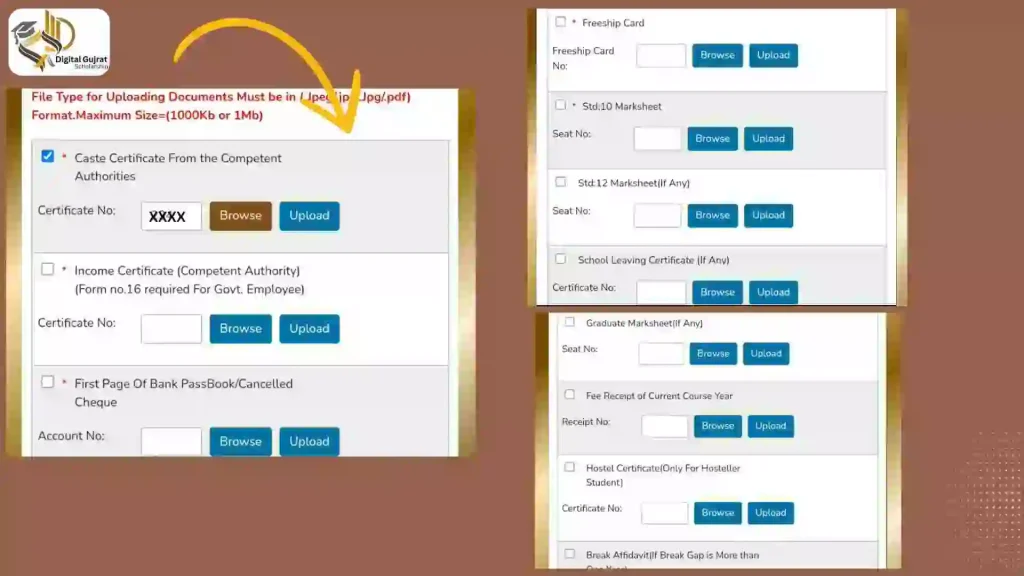
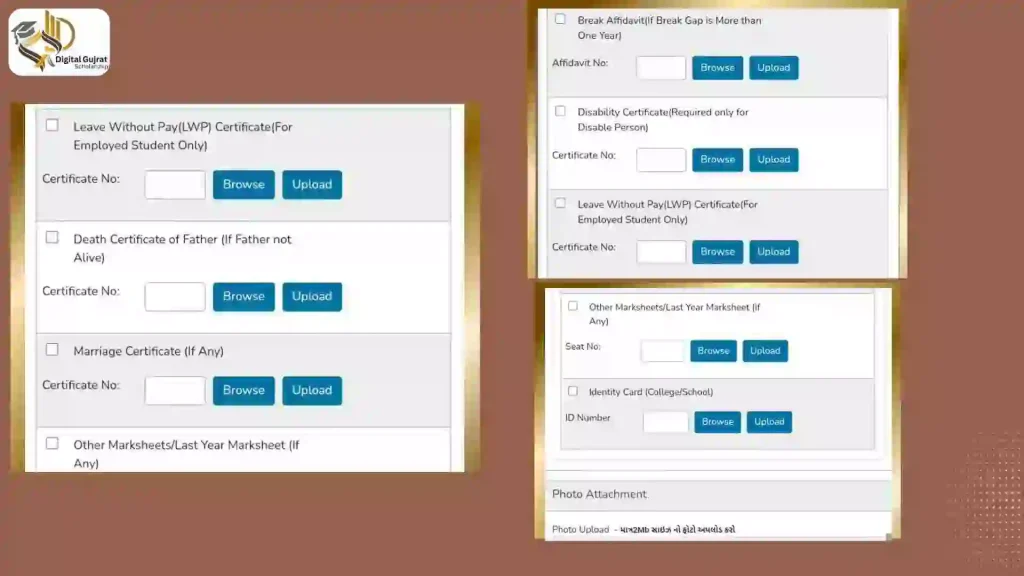
Which documents should you keep ready?
Requirements can change, so match this list to the form on your screen.
- Caste certificate
- Income certificate (valid if issued in the last 3 years; Form 16 for government employees)
- Bank passbook first page or cancelled cheque
- Freeship Card number
- 10th mark sheet
- 12th mark sheet, if any
- School leaving certificate, if any
- Graduate mark sheet, if any
- Fee receipt of current course
- Hostel certificate, if any
- Break affidavit, if any
- Disability certificate, if any
- Father’s death certificate, if it applies
- Marriage certificate, if any
- College or school ID card
- Passport photo
Check that names, dates and numbers match across all documents. A mismatch can get the application rejected.
How do you submit and check your application?
- Tick the terms box and confirm everything is correct.
- Click Save as draft.
- Press Print and take the form to your college for verification.
- Log in again and fix anything the college asks for.
- Press Verify mobile number, enter the OTP and submit.
You cannot edit after final submission. One student can send one application. Duplicates from the same or another institute are rejected.
To check status: log in, open Services, then Scholarship Services, and open your application.
Watch the full walkthrough
Frequently asked questions
What is the Digital Gujarat Scholarship login?
It is the sign in page of the Gujarat citizen portal. After you sign in, you can open scholarship services and apply online.
How do I log in to Digital Gujarat?
Enter your registered email or mobile number, your password and the captcha. Confirm the OTP, then open Services.
I forgot my password. What now?
Tap Forgot Password on the login page and follow the steps. Use the email or mobile number you registered with.
Can I register with a family member’s number?
Yes. If you have no mobile, use a parent or close relative’s number. Make sure you can receive the OTP on it.
Can general category students apply?
The portal lists schemes for General category students along with SC, ST, SEBC, EBC, NTDNT, EWS and Minority. Eligibility depends on each scheme, so read its rules.
What is a Freeship Card?
It is a card for eligible SC and ST students that supports admission. You enter its number, issue date and district in the academic step. Other categories do not use it.
How do I do ration card KYC?
Install the My Ration app and start KYC. It takes about two days. Without KYC the form will not open for filling.
Can I edit the form after I submit it?
No. The application cannot be edited after final submission. Save it as a draft and review everything first.
Is the Digital Gujarat login free?
Yes. Registration and application on the official portal are free.
Which file types and sizes are allowed?
Use jpeg, jpe, jpg or pdf under 1 MB. The photo may be up to 2 MB.